

How to Connect Two Monitors to a Laptop Docking Station
To connect two monitors to a laptop docking station, verify that your laptop and dock both support dual displays, then connect each monitor to the correct video port and set the displays to Extend mode. If one screen mirrors or stays dark, the usual cause is a compatibility, cable, or settings mismatch rather than a bad monitor.
If you want to connect two monitors to a laptop docking station, the short version is simple: confirm that both your laptop and dock support dual displays, then connect each monitor to the correct video output and set up the displays in your operating system. The details matter, though, because some docks mirror screens by default, some need DisplayPort MST support, and some laptops limit how many external monitors they can drive.
- Compatibility first: Your laptop, dock, cables, and monitors must support the same video standard.
- Not all USB-C ports carry video: Check for DisplayPort Alt Mode, Thunderbolt, or USB4 support.
- Dual-monitor limits vary: Resolution, refresh rate, and operating system support can change the result.
- Power delivery matters: The dock must provide enough wattage to charge the laptop while everything is connected.
Before connecting the screens, review USB-C hub support for two monitors to separate compatibility checks from setup steps. If a display stays blank, follow our USB-C hub monitor-detection troubleshooting guide.
How to Connect Two Monitors to a Laptop Docking Station: The Fast Answer
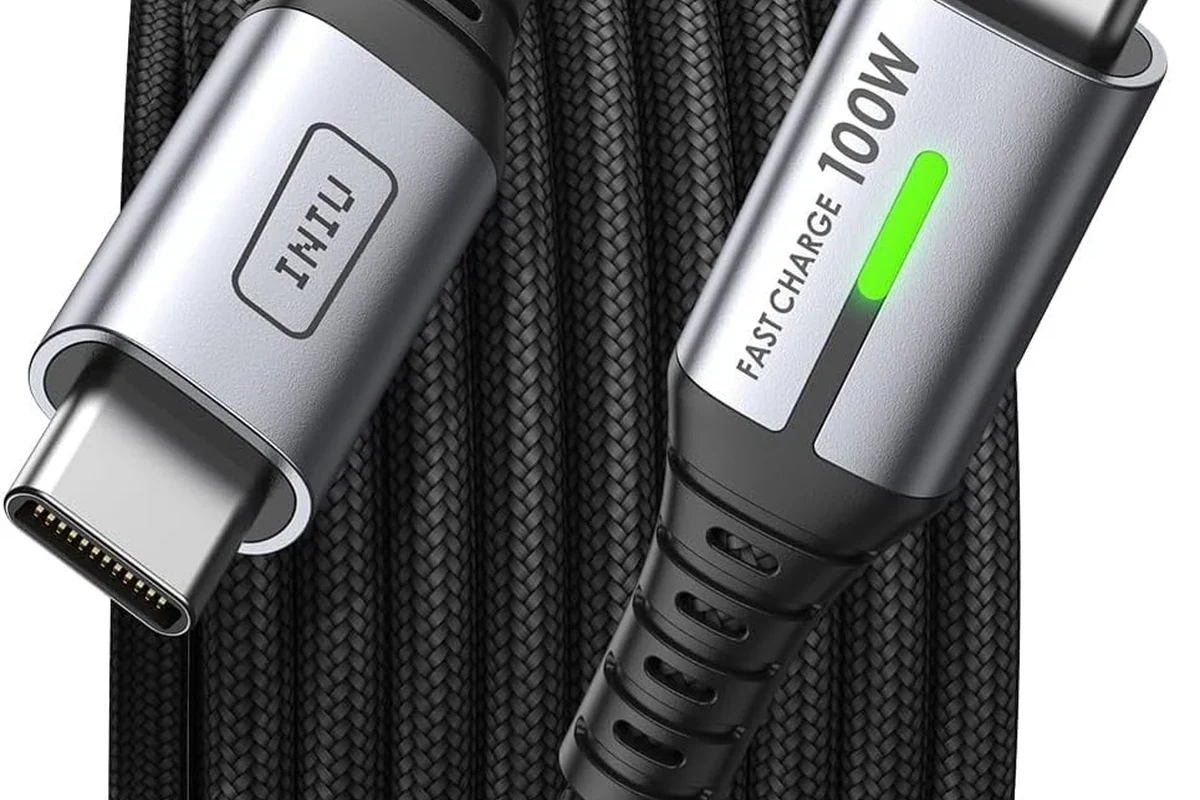
Start by checking three things: your laptop’s video output support, the dock’s dual-monitor capability, and the input ports on both monitors. If those match, connect the dock to power, attach the laptop, plug each monitor into the proper dock port, and choose Extend Display in Windows or Arrange Displays in macOS.
What You Need Before You Start
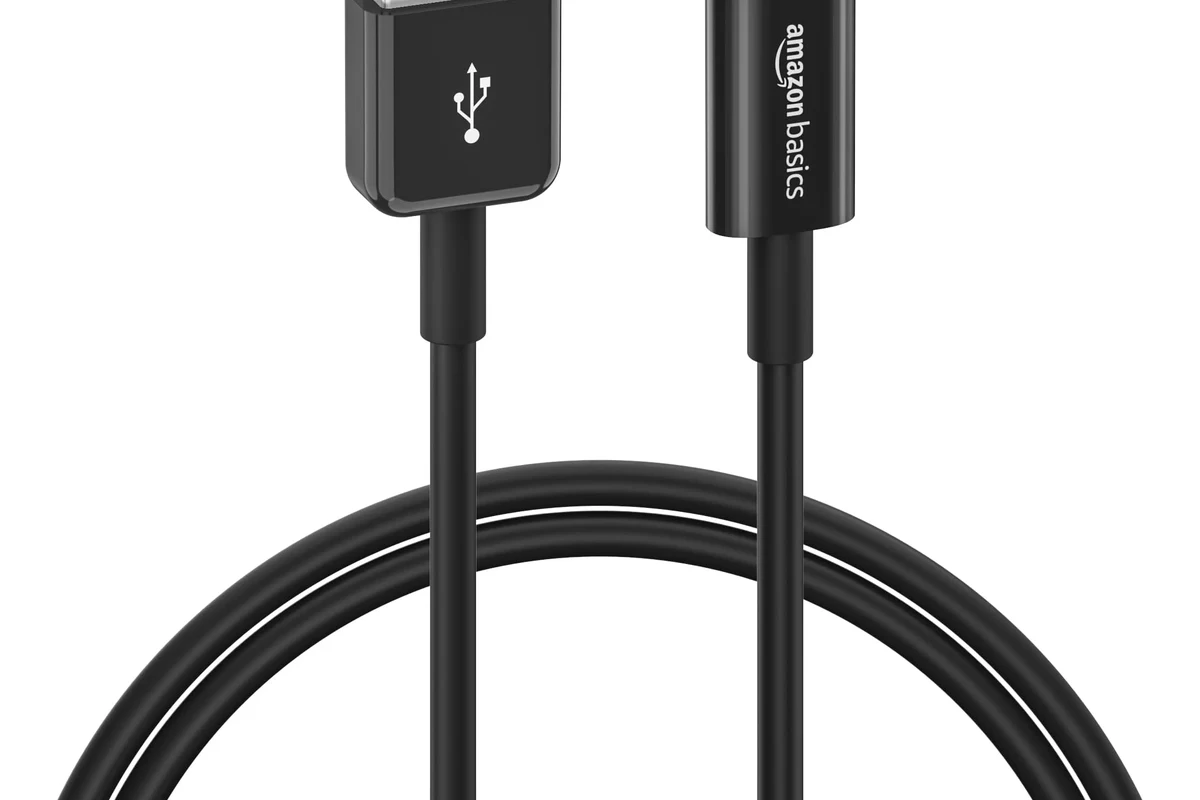
Dual-monitor docking is usually straightforward once the hardware matches, but the wrong port or cable can turn a simple setup into a frustrating one. Before you plug anything in, verify the laptop, dock, and monitors are all compatible in the same configuration.
Check Your Laptop’s Video Output Support
Your laptop must support sending video through its USB-C, Thunderbolt, or USB4 port, or through a separate video output such as HDMI. Not every USB-C port carries video, and not every laptop can run two external monitors from one dock.
Look for terms like DisplayPort Alt Mode, Thunderbolt, USB4, or explicit support for multiple external displays in the laptop’s manual or spec sheet. On some systems, external display limits depend on the processor, graphics hardware, and operating system version.
Confirm the Docking Station’s Dual-Monitor Capability
Not all docking stations support two independent displays. Some are single-display docks, some mirror one screen to the other, and some only support dual monitors on certain operating systems or at lower resolutions.
Manufacturer marketing can be vague here, so check the exact model number, the port layout, and the compatibility chart in the official manual before buying or connecting.
Pay close attention to whether the dock uses native video output, DisplayPort MST, or DisplayLink software. Those details affect whether you get two extended desktops or just one mirrored image.
Match the Right Cables, Ports, and Monitor Inputs
Each monitor needs a compatible input, such as HDMI, DisplayPort, USB-C video input, or another supported connector. The dock’s output ports must match those inputs, or you’ll need certified adapters that preserve the resolution and refresh rate you want.
- Check the laptop’s supported display outputs and external monitor limits
- Confirm the dock’s dual-monitor mode, resolution limits, and OS compatibility
- Match monitor inputs, cable types, and any required adapters
- Verify power delivery needs so the laptop still charges properly
How Dual-Monitor Docking Works in 2026
Today’s docking stations use a few different methods to send video. The setup feels the same from the outside, but the underlying technology determines how many monitors you can run, at what resolution, and on which operating systems.
USB-C, Thunderbolt, and DisplayPort Alt Mode Explained
USB-C is the connector shape, not the display standard by itself. For video, the port must support DisplayPort Alt Mode, Thunderbolt, or USB4 with display capability.
Thunderbolt and USB4 docks usually offer the most flexible dual-monitor support because they have more bandwidth. DisplayPort Alt Mode docks can work well too, but the exact monitor count and resolution depend on the laptop and dock design.
Some USB-C docks send video through the laptop’s graphics hardware, while others use DisplayLink software to compress and transmit the display signal over USB data.
Single-Cable vs Multi-Cable Docking Setups
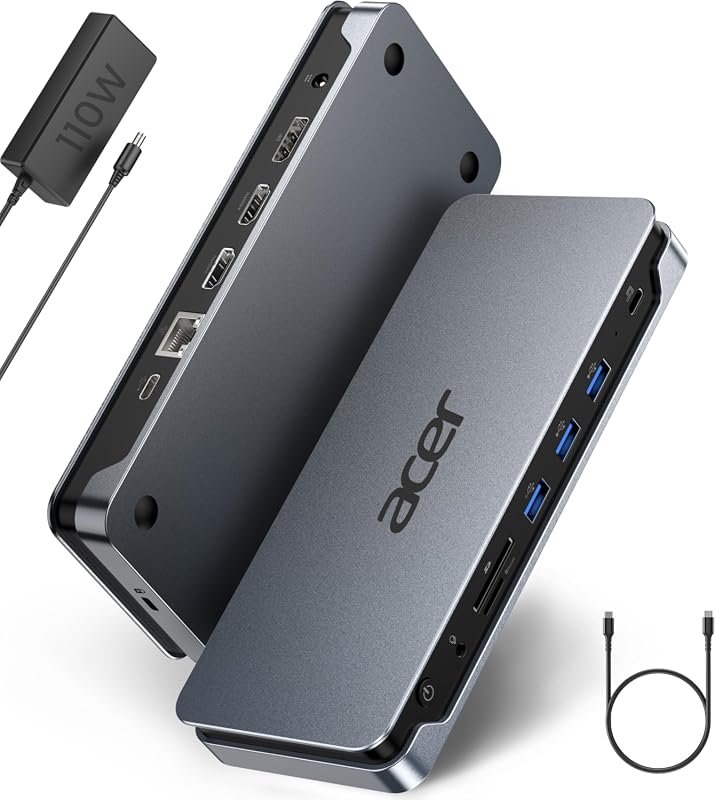
A single-cable dock is the most convenient setup: one cable from the laptop to the dock carries video, data, and sometimes charging. This is ideal for a clean desk, but only if the laptop and dock support the display load you need.
Multi-cable setups may use separate video outputs or additional power cables. They are less elegant, but sometimes they are the only reliable way to run two monitors at higher resolutions or on laptops with stricter display limits.
Step-by-Step Setup Guide for Two Monitors
Once the compatibility check is done, the physical setup is usually quick. The goal is to connect power first, then the laptop, then the monitors, and finally configure the display layout in software.
Connect the Dock to Power and the Laptop
Use the manufacturer-supplied power brick or an approved replacement with the correct wattage.
Use the port specified in the manual, usually USB-C, Thunderbolt, or USB4.
Some displays appear only after the operating system finishes detecting the dock.
Attach Each Monitor to the Correct Video Port
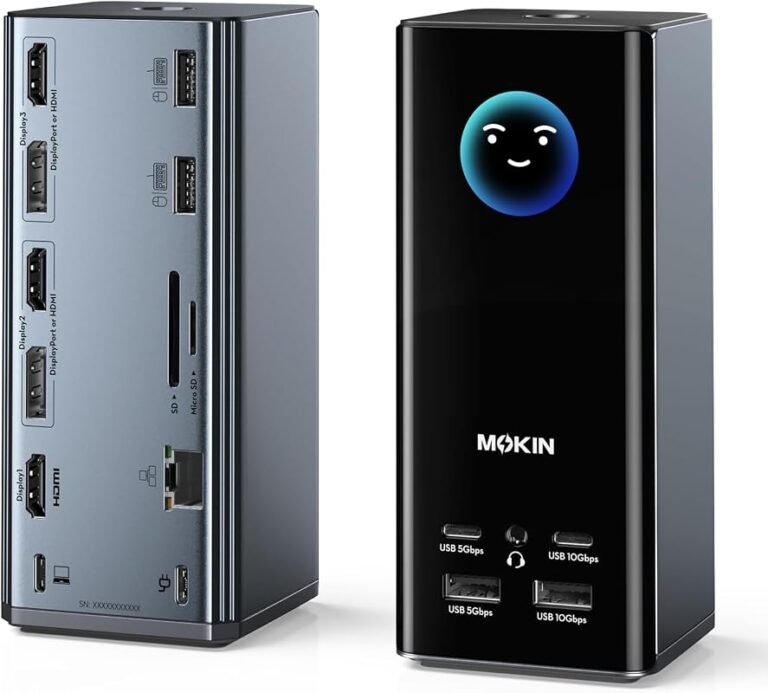
Connect each monitor to the dock’s designated video outputs. If the dock has labeled ports such as HDMI 1, HDMI 2, DisplayPort 1, or DisplayPort 2, follow the manual’s recommended pairing rather than guessing.
If one monitor is older and the other is newer, place the higher-resolution or higher-refresh display on the port with the greatest bandwidth, if the dock documentation identifies one. Keep cable runs short and use good-quality cables that match the required standard.
Stop using damaged cables, loose connectors, or overheating power adapters. Frayed insulation, bent pins, and unstable connections can cause intermittent display loss and may create a safety risk.
Configure Display Settings on Windows and macOS
On Windows, open Display settings and choose Extend these displays if the monitors are mirroring. Then drag the display icons into the correct physical order and set the preferred main display.
On macOS, open System Settings, go to Displays, and arrange the screens so the desktop layout matches your desk. If the Mac only mirrors displays or refuses a second external monitor, check the model’s display limit, because some laptops need specific docks or additional software to support dual external screens.
- Restart the laptop after updating dock firmware or display drivers if the monitors are not detected.
- Test one monitor at a time before connecting both, especially with a new dock or adapter.
- If the screens are in the wrong order, rearrange them in software instead of swapping cables first.
Key Specs That Decide Whether a Dock Will Work
Two docks can look similar and behave very differently. The deciding factors are usually resolution support, bandwidth, display technology, and charging power.
Resolution and Refresh Rate Limits
Every dock has limits on how much video it can send. A setup that works at 1080p may not support dual 4K displays, and a setup that supports 4K may only do so at 30Hz or with reduced refresh rates depending on the port and cable.
If you care about smooth motion for gaming, scrolling, or creative work, verify both resolution and refresh rate in the official specs. Do not assume that “dual 4K” means dual 4K at the refresh rate you want.
Bandwidth, MST, and DisplayLink Compatibility
DisplayPort MST, or Multi-Stream Transport, lets one connection carry multiple display streams. It works well on many Windows systems, but support can vary on macOS and on specific dock models.
DisplayLink uses software to handle external displays over USB data. That can be useful when native video bandwidth is limited, but it may add driver requirements and can behave differently depending on the app, OS version, and security settings.
Power Delivery Wattage and Laptop Charging Needs
If the dock also charges your laptop, the power delivery rating matters. A dock with insufficient wattage may still run the monitors but charge the laptop slowly, drain the battery under load, or fail to keep up during heavy work.
Check your laptop manufacturer’s recommended charging wattage and compare it with the dock’s output. Gaming laptops, workstation-class machines, and larger creator laptops often need more power than thin-and-light models.
Who This Setup Fits Best
Two-monitor docking is a strong fit for people who want a cleaner desk and faster switching between work and home use. It is not the right solution for every laptop or every workflow, especially when display demands are high.
Best for Office Work, Coding, and Creative Multitasking
This setup is especially useful for spreadsheets, email, coding, research, video calls, and document-heavy workflows. It also helps creators who want one screen for editing tools and another for a preview, timeline, or reference material.
Remote workers and students often benefit most from a dock because it reduces plug-and-unplug wear and keeps peripherals ready to go. That said, the desk layout, monitor size, and cable routing still matter for comfort and long-term usability.
People who want a simple one-cable workstation with two external screens, stable charging, and fewer desk connections. The main limitation is that the laptop and dock must both support the exact display mode you need.
When a Two-Monitor Dock Is Not the Best Choice
Skip a dual-monitor dock if your laptop only supports one external display, if you need very high refresh rates, or if your monitors use mismatched inputs that require several adapters. In those cases, direct monitor connections or a different dock architecture may be more reliable.
Travelers and hybrid workers may also prefer a lighter USB-C hub if they only need one external screen sometimes. A full dock is better for permanence, while a hub is better for portability.
Common Problems, Mistakes, and Safety Checks
Most dual-monitor issues come from compatibility mismatches rather than broken hardware. A careful check of the laptop, dock, and cables solves many problems before you start swapping parts.
Why One Monitor May Stay Dark or Mirror the Other
If one screen stays dark, the dock may be out of bandwidth, the wrong port may be used, or the monitor may be set to the wrong input source. If both screens show the same content, the system may be in mirror mode instead of extended mode.
On macOS, some docks and some laptops support only mirrored output in certain configurations. On Windows, outdated graphics drivers or dock firmware can also cause one display to disappear.
Stop using a dock that runs unusually hot, smells burnt, disconnects repeatedly, or shows signs of physical damage. Check the manufacturer’s support page, firmware notes, and warranty guidance before continuing.
Heat, Cable Quality, and Safe Long-Term Use
Docks and charging bricks naturally warm up, but they should not become excessively hot to the touch. Good airflow matters, especially when the dock is also powering monitors, peripherals, and laptop charging at the same time.
Use certified or manufacturer-approved cables whenever possible. Cheap or worn cables are a common cause of flickering, signal dropouts, and unstable charging.
When to Replace Cables or Rethink the Dock
Replace a cable if the image cuts out when the cable is moved, if the connector feels loose, or if visible wear appears. If the dock cannot meet your resolution, refresh rate, or charging needs even with good cables, it may be the wrong model for your setup.
In some cases, the best fix is a different dock with more bandwidth, stronger power delivery, or explicit support for your laptop model. Checking the official compatibility list before buying is often easier than troubleshooting after the fact.
Value, Alternatives, and Final Recommendation
The best choice depends on how permanent your desk setup is and how demanding your displays are. For many people, the right answer is not the most expensive dock, but the one that matches the laptop’s actual capabilities.
Docking Station vs USB-C Hub vs Direct Monitor Connection
| Option | Best For | Key Consideration |
|---|---|---|
| Docking station | Permanent home office or hybrid desk | Best when you need charging, peripherals, and two displays from one connection |
| USB-C hub | Light travel and simple setups | May not support dual monitors or full charging power |
| Direct monitor connection | High-display-demand users | Can be more reliable if the laptop has enough native video outputs |
A dock is the most convenient choice when you want a tidy workstation. A hub is better when portability matters more than full desktop functionality. Direct connections can be the safest fallback when compatibility is uncertain.
Best Buying Criteria and Final Verdict
Before you choose a dock, prioritize verified laptop support, dual-monitor output mode, resolution and refresh limits, power delivery wattage, and operating system compatibility. Also confirm firmware update support, warranty terms, and whether the manufacturer publishes a clear compatibility list.
To connect two monitors to a laptop docking station successfully, match the laptop’s display support, the dock’s dual-output method, and the monitor inputs before you buy or plug in. If those three pieces line up, the setup is usually easy; if they do not, choose a different dock or a direct-connection approach instead of forcing an incompatible configuration.
Frequently Asked Questions
Check the laptop’s manual or spec sheet for DisplayPort Alt Mode, Thunderbolt, USB4, or explicit multi-monitor support. The number of external displays can vary by processor, graphics hardware, and operating system.
The dock or operating system may be set to mirror mode instead of extended mode. It can also happen if the dock uses a display method that your laptop or OS handles differently.
You need cables that match the dock’s video outputs and each monitor’s input ports, such as HDMI or DisplayPort. If adapters are needed, use ones that support the resolution and refresh rate you want.
Sometimes, but only if the laptop, dock, and cables all support enough bandwidth. Check the official specifications for both resolution and refresh rate, because dual 4K support varies widely.
Many docks provide power delivery, but the wattage must be high enough for your laptop. If the wattage is too low, the laptop may charge slowly or drain under heavy use.
Confirm the monitor input source, cable connection, dock port assignment, and display settings first. If the problem continues, check for firmware or driver updates and review the manufacturer’s compatibility guide.



2 Comments