Default IP Zosi Camera Guide for Easy Setup and Access
Find the camera’s current IP in your router, app, or NVR, then reserve it so access stays stable. Always verify the exact Zosi model, power, and firmware before troubleshooting or changing network settings.
If you’re looking for the default IP Zosi camera setup path, the key idea is simple: the camera usually gets its network address from your router or recorder, not from a single universal public IP. In most homes, the fastest way to access it is to find the current IP on your router, Zosi app, or NVR, then keep that address stable with a reservation or static IP.
- Default IP is not universal: Zosi cameras usually get their address from the router or recorder.
- Stability matters: A router reservation often prevents future access problems.
- Model details count: App support, power, and connection type vary by camera.
- Start with basics: Check power, cables, network, and credentials before resetting.
What “Default IP Zosi Camera” Means and How to Find It Fast
People often use “default IP” to mean one of two things: the camera’s network address on your local network, or the default login details needed to get into the device. Those are not the same. The IP address tells your router and phone where the camera lives on the network, while the username and password control access to the camera, app, or recorder.
Default IP vs. default username/password: what users usually mean
For many Zosi cameras, there is no single universal IP address that works everywhere. The address is usually assigned by your router through DHCP, which means it can change when the camera reconnects, the router reboots, or the device is moved to a different network. If you are trying to log in, you may actually need the default credentials listed in the manual or on the device label, not an IP lookup.
Default credentials and access methods can vary by model, firmware version, and whether the camera is used alone, through a Zosi app, or with an NVR. Always confirm the exact model number before following setup steps.
Where the camera’s IP address comes from on a home network
Most cameras do not “choose” their own address in a useful human sense. Your router typically assigns one automatically, and the recorder or app may also display it once the device is online. That is why the same camera can appear at a different IP after a power outage or network change.
How to Access a Zosi Camera on Your Network in 2026
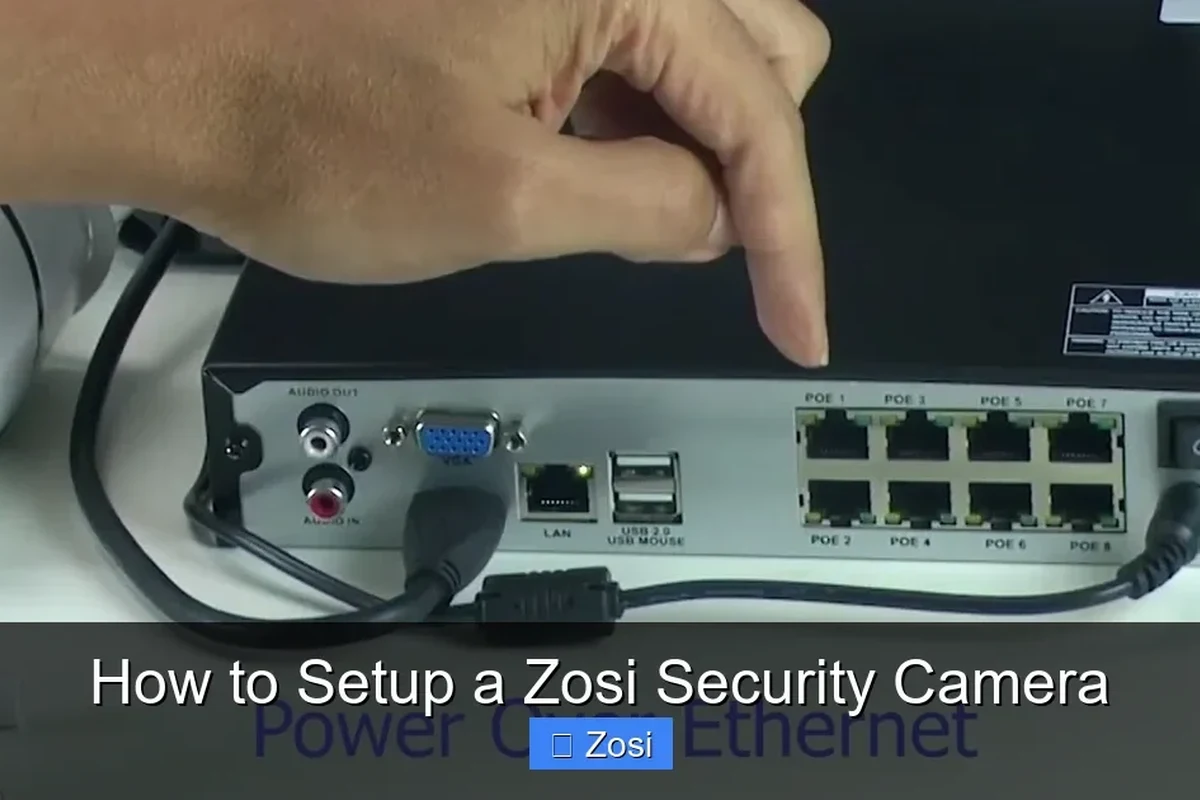
The most reliable way to access a Zosi camera is to identify its current local IP, then open that address from the same network or add the camera through the official app or NVR interface. If remote viewing is involved, the app or recorder usually handles the outside connection, while the local IP remains the foundation for setup and troubleshooting.
Using the router, Zosi app, or NVR to discover the camera IP
You can usually find the camera address in one of three places. Your router’s connected-device list may show the camera by name or MAC address. The Zosi app or recorder interface may also list the device IP, especially if the camera is already paired.
- Check the router’s client list after the camera powers on and connects.
- Look for the camera’s MAC address on the label if the device name is generic.
- Use the official app or recorder menu before trying third-party tools.
Why the address can change and how DHCP affects access
DHCP is convenient because it lets the router assign addresses automatically, but it can also make a camera harder to find later. If the camera’s address changes, old bookmarks, app shortcuts, and browser logins may stop working. A reservation in the router or a static IP on the device can reduce that problem, as long as the address is chosen correctly and does not conflict with another device.
Setup Requirements: Network, App, Power, and Compatibility
Before changing IP settings, make sure the camera is actually supported by your network setup. Many access issues come from mismatched connection types, outdated apps, weak power delivery, or firmware that does not match the recorder or phone app.
Supported connection types: wired Ethernet, Wi‑Fi-enabled models, and NVR setups
Some Zosi cameras use wired Ethernet, some support Wi‑Fi, and others are designed to work mainly through an NVR. The installation path depends on the exact model. If your camera is wired, the network path is usually simpler. If it is Wi‑Fi-enabled, placement and signal strength matter much more.
App requirements, login credentials, and firmware considerations
Use the official Zosi app or the recorder interface recommended for your model. App behavior can vary by version, phone operating system, and region. If the camera will not pair, verify that you are using the correct account, the correct device type, and current firmware that still supports the app path shown in the manual.
Power and cabling basics to verify before setup
Stable power is essential. Check that the adapter matches the camera’s required rating, that the cable is not damaged, and that connectors are fully seated. For outdoor runs, make sure the cable path is protected from moisture, pinching, and excessive bending.
Stop using frayed cables, loose power adapters, or equipment that gets unusually hot. If the camera or power supply shows damage, follow the manufacturer’s instructions and replace the faulty part before continuing.
Step-by-Step Default IP Zosi Camera Setup Guide
Once you know the camera is powered and connected, the next goal is to make its address easy to find again. That usually means resetting only when needed, then reserving an IP or assigning a static address so the camera stays reachable.
Resetting the camera and restoring access safely
If the camera is offline, stuck, or tied to old credentials, a reset may help. Use the reset method in the official manual rather than guessing, since the button location and hold time can differ by model. After the reset, reconnect the camera using the supported app or recorder workflow and confirm that it appears online before changing any network settings.
Check the cable, adapter, and ports for visible damage before resetting anything.
Follow the model-specific manual so you do not interrupt the wrong component.
Wait for the camera to reappear before changing IP settings or passwords.
Assigning a static IP or reserving an address in the router
For most home users, a router reservation is the safer option because the router keeps control of the network and still gives the camera the same address every time. A true static IP can also work, but it must be placed outside the router’s automatic pool or carefully matched to your network plan to avoid duplicates. If you are unsure, use the reservation feature in the router first.
Write down the camera’s MAC address and the reserved IP in a small home-network note. That makes future troubleshooting much faster when the device is moved or reset.
Adding the camera to the app or recorder without common setup errors
When pairing fails, the usual causes are simple: the camera is on the wrong network band, the password is incorrect, the app is outdated, or the device already has a conflicting address. Add the camera only after it is online, then confirm live view, motion settings, and notifications one step at a time. If the recorder supports it, verify that the channel and resolution settings match the camera’s capability.
- Check the exact model number and connection type.
- Confirm app compatibility, firmware support, and login requirements.
- Verify power, cabling, mounting space, and network access.
- Set a strong password and review privacy settings after setup.
Who This Guide Fits Best: Homeowners, Renters, and Small-Business Users
This setup approach works best for people who want dependable local access without constantly hunting for a changing IP. It is especially useful when you need to revisit the camera later for live view, motion alerts, or recorder management.
Best use cases for monitoring entryways, garages, and indoor rooms
Homeowners often use Zosi cameras for front doors, driveways, garages, basements, and common indoor areas. Renters may prefer models that can be installed with minimal drilling or that can be repositioned if they move. Small businesses often value the ability to keep a stable local address for a counter, stockroom, or entry point.
When a Zosi camera is a good fit versus when it is not
A Zosi camera is a good fit if you want straightforward monitoring, local network access, and app-based viewing through supported hardware. It may be less ideal if you want a platform with highly polished cross-brand smart-home automation, very advanced cloud features, or a setup that never changes across different models. In those cases, compare the exact model’s ecosystem before buying or reconfiguring.
Key Specs and Decision Criteria to Verify Before You Buy or Reconfigure
Because Zosi models vary, the most important step is not guessing from the brand name alone. Check the exact camera specifications so the setup method, storage plan, and mounting approach match what you already own or plan to install.
Resolution, field of view, night vision, and storage options
Resolution affects how much detail you can review later, while field of view affects how much of the scene the camera can cover. Night vision quality, local storage support, and app playback options also matter. Confirm whether your model uses microSD, NVR storage, cloud features, or a mix of those options, since support can differ by model and firmware.
Dimensions, mounting style, weather rating, and installation space
Physical fit matters just as much as software setup. Measure the installation area, confirm the mount style, and check whether the camera is designed for indoor or outdoor use. If it will be exposed to weather, confirm the relevant rating in the official specs rather than assuming all Zosi cameras are weatherproof.
Warranty, app support, and update policy details to confirm
Before you commit to a reconfiguration or purchase, review the warranty terms, app support status, and firmware update policy. These details can affect how long the camera stays easy to access and whether the app still works well with your phone. If the manufacturer’s support documents are unclear, that is a sign to verify before relying on the device for important monitoring.
Real-World Benefits, Limitations, and Common Mistakes
The main benefit of managing a Zosi camera’s IP correctly is stability. Once the address is organized, the camera is easier to open, easier to troubleshoot, and less likely to disappear after a router reboot.
Home users who want a dependable local camera setup with app or recorder access and are willing to reserve an IP address for easier management. The tradeoff is that setup quality depends on the exact model, router behavior, and app support.
Practical advantages: easier access, stable monitoring, and remote viewing
A stable IP makes bookmarks, recorder channels, and troubleshooting much simpler. It also reduces confusion when you need to check live video quickly. For households with more than one camera, consistent addressing can save a lot of time during maintenance.
Common mistakes: wrong IP, weak passwords, duplicate addresses, and outdated firmware
The most common setup errors are easy to avoid. People often enter the wrong address, forget that another device already uses the same IP, leave the password too weak, or skip firmware updates that fix connection bugs. A careful setup pass usually solves more problems than repeated resets.
Limitations to keep in mind: app dependence, network changes, and model variation
Even a well-configured camera can be affected by router changes, app updates, or model-specific behavior. Some features may work differently depending on the recorder, phone, or firmware version. That is why the official manual and support notes matter more than generic advice found online.
Safe Use, Maintenance, and Troubleshooting for Long-Term Reliability
After setup, the goal is to keep the camera reachable and cleanly powered. A little maintenance goes a long way, especially in outdoor or high-traffic areas where dust, heat, and cable strain can build up over time.
Routine care, cable inspection, and storage/placement tips
Check the camera housing, lens, and cable path periodically. Dust the lens gently with a soft, dry cloth and make sure the mount stays tight. Keep cables out of pinch points and avoid placing the camera where direct sun, moisture, or vibration could shorten its useful life.
Stop using damaged electronics, swollen batteries, frayed cables, overheating chargers, or unstable appliances and follow the manufacturer’s guidance.
Basic troubleshooting for offline cameras, login failures, and connection drops
If the camera goes offline, start with the basics: power, cable seating, router status, and signal strength. If login fails, confirm the username and password and check whether the device was reset or moved to a new network. If the connection drops repeatedly, look for weak Wi‑Fi, duplicate IP addresses, or a firmware mismatch between the camera and the app or recorder.
When to reset, replace cables, or contact support
Reset only after you have ruled out simple network and power problems. Replace a cable if it is visibly worn, intermittent, or physically damaged. If the camera still will not appear in the app or recorder after safe troubleshooting, contact Zosi support or review the official manual for your exact model before trying anything more invasive.
Final Recommendation: Is a Default IP Zosi Camera Worth Setting Up?
Yes, for most users, a Zosi camera is worth setting up if you want practical home monitoring and are willing to manage the network side correctly. The best results come from finding the current IP, reserving it in the router, and keeping the app, firmware, and login details organized from the start.
Best-value scenarios and transparent verdict for 2026 readers
The strongest fit is a homeowner, renter, or small-business user who needs reliable access to a specific camera without constant network confusion. If you want a low-maintenance setup, the value is in stable IP management and official app support; if you want a platform with fewer model differences and more uniform smart-home behavior, compare alternatives before committing.
- Find the camera’s current IP through the router, app, or NVR rather than assuming one universal default address.
- Use a reservation or static IP to keep access stable after reboots or network changes.
- Verify the exact model, app, power, and firmware requirements before troubleshooting deeper issues.
Frequently Asked Questions
It usually refers to the camera’s local network address, not a universal public IP. Some users also mean the default login credentials, which are separate from the IP address.
Check your router’s connected-device list, the Zosi app, or the NVR interface if the camera is already paired. The exact method depends on the model and how it is connected.
Most home routers assign addresses with DHCP, so the camera can get a new IP after rebooting or reconnecting. A router reservation or static IP helps keep the address stable.
A router reservation is usually easier and safer for most users because the router still manages the network. A static IP can work too, but it must be set carefully to avoid address conflicts.
Verify power, cable condition, Wi‑Fi signal, login credentials, and firmware support first. Also confirm that the camera is using the correct app or recorder workflow for your exact model.
It can be a good fit for entryways, garages, indoor rooms, and small-business spaces when you want simple local access and app viewing. Confirm the exact model’s specs, storage options, and support details before buying or reconfiguring.