External SSD Slow Through a USB-C Hub? 7 Checks
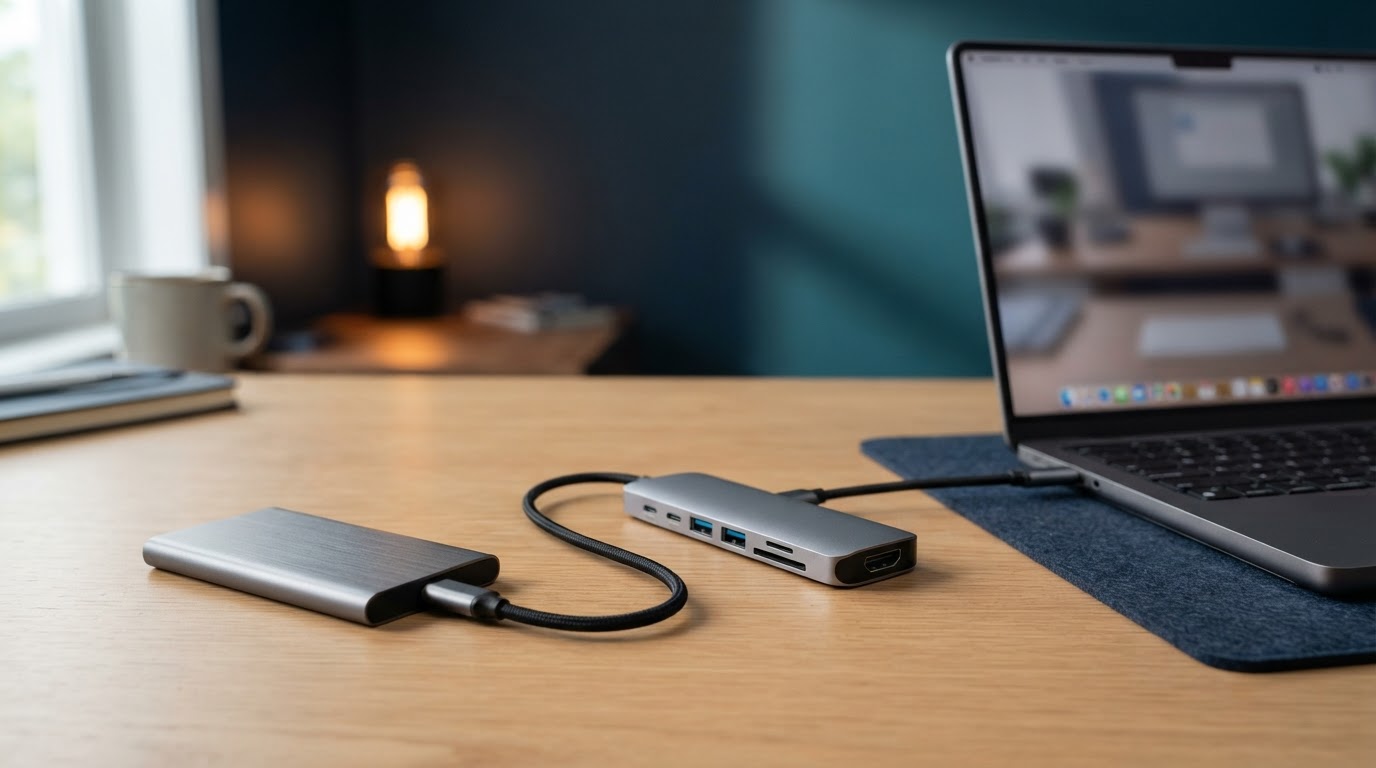
An external SSD slow through a USB-C hub does not automatically mean the SSD is faulty. Compare the same file transfer with the SSD connected directly to the laptop, using its supplied data cable. Then repeat through the hub with other accessories idle. Check the data speed supported by every cable and port in that path.
This guide covers an SSD that stays connected but transfers files below expectations. If the drive disappears, reconnects, or shows an unexpected-eject warning, use our separate external SSD disconnecting through a hub guide. Resolve connection stability before interpreting speed measurements.
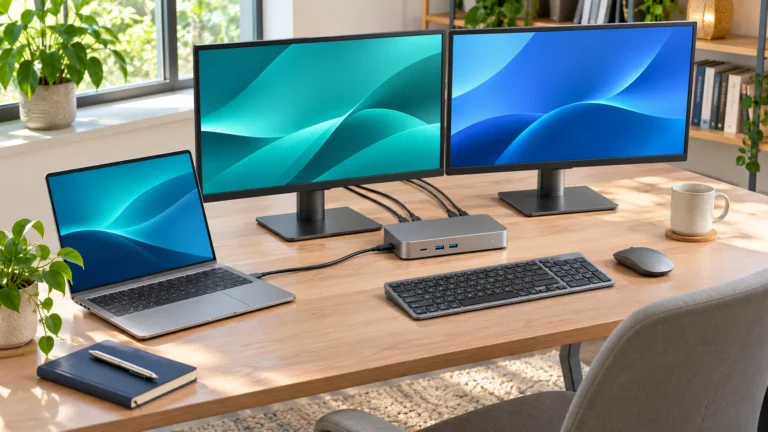
This is a research-based workflow, not a hands-on benchmark or a product ranking. The images are existing setup illustrations. Manufacturer sources support the interface checks; the comparison worksheet below helps you gather evidence from your own laptop, hub, and drive.
Find the bottleneck before upgrading. A faster SSD cannot overcome a slower hub port or an unsuitable data cable.
Affiliate disclosure: As an Amazon Associate I earn from qualifying purchases. We may also earn from Walmart links, at no extra cost to you.
USB-C SSD speed: what the numbers actually mean
| Connection label | Signaling rate | Arithmetic equivalent before overhead |
|---|---|---|
| USB 2.0 High Speed | 480 Mbps | 60 MB/s |
| USB 3.2 Gen 1 | 5 Gbps | 625 MB/s |
| USB 3.2 Gen 2 | 10 Gbps | 1,250 MB/s |
| USB 3.2 Gen 2×2 | 20 Gbps | 2,500 MB/s |
The last column divides bits by eight. It is a unit conversion, not an expected benchmark. Encoding, protocol overhead, the SSD, the source drive, and the workload reduce actual file-transfer throughput. A 10 Gbps label does not promise 1,250 MB/s in a copy window.
The USB-IF naming guidelines distinguish 5, 10, and 20 Gbps USB 3.2 modes. The connector shape alone does not tell you which one is supported. Also distinguish a port’s maximum capability from the mode used by the current connection.
Read the full dock specification. Its host connection may have a different maximum from an individual downstream USB port. Likewise, a Thunderbolt dock can contain USB ports with lower data rates than the headline Thunderbolt connection. List the particular ports you use rather than copying the largest number from the box.
1. Compare a direct connection with the same workload
Choose an ordinary large file you already have a separate copy of, such as a video or archive. Copy it from the laptop’s internal drive to a new test folder on the SSD. Use a copy rather than a move, leave sufficient free space, and never overwrite your only copy of an important file.
Start with the SSD connected directly to a suitable laptop port using the supplied cable. Note the file size, direction, completion time, and whether the speed falls during the copy. A single short burst at the beginning is not a sustained-write measurement. If you repeat the test, be aware that operating-system caching can affect the result.
Safely eject the SSD after activity stops. Reconnect through the hub, keep the same SSD cable where possible, and repeat the same copy to another empty test folder. Avoid simultaneous downloads, backups, or other large transfers. This comparison is more informative than comparing your copy speed with a marketing maximum obtained under different conditions.
If both routes are similarly slow, the hub may not be the main limit. Investigate the cable, drive, source, file workload, and computer. If only the hub route slows down, focus on the hub’s downstream port, host connection, and shared activity. These results narrow the investigation rather than proving a hardware fault.
2. Check the SSD cable and the hub host cable
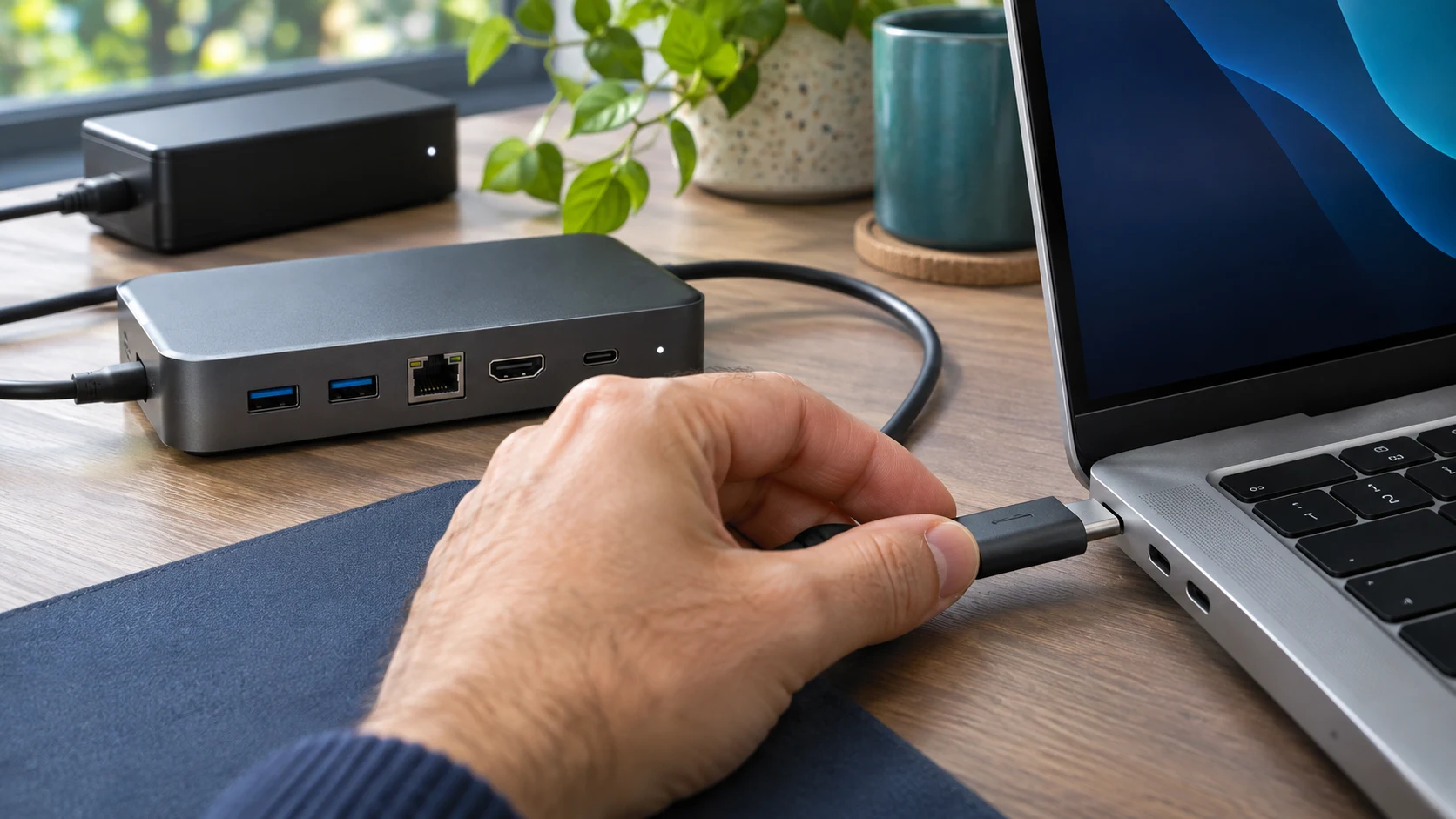
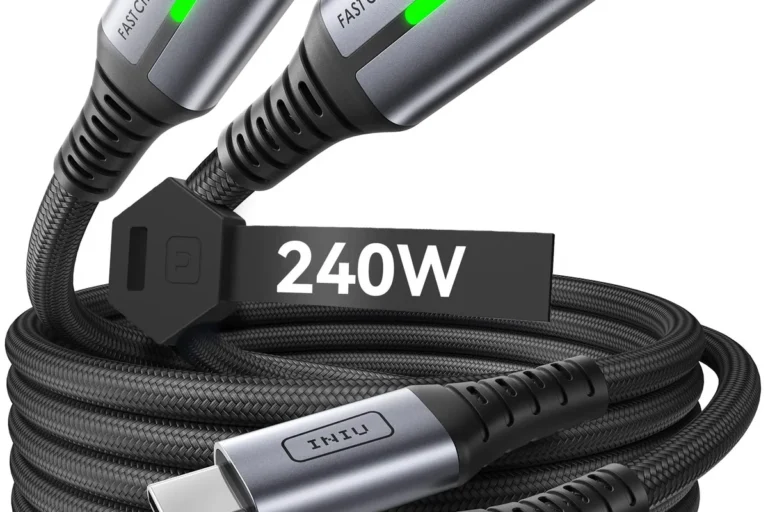
A USB-C cable can support high charging power while offering modest data capability. A “100W” or “240W” claim therefore does not establish that it supports 10 Gbps storage transfers. Look for a stated data rate and the correct connector type. Our USB-C charging versus data cable guide explains this distinction.
For a detachable-cable hub or dock, check two links separately: SSD to hub, then hub to laptop. Substitute the drive maker’s supplied cable first. For the dock host link, use the supplied cable or a replacement explicitly compatible with that model. Remove extension leads and unnecessary adapter chains for the baseline.
Samsung’s Portable SSD T7 manual, for example, identifies USB 3.2 Gen 2 at 10 Gbps as the relevant interface for optimal T7 performance and explains that older interfaces can limit it. Apply the equivalent requirements from your own drive’s documentation.
Try one cable change at a time. If changing the SSD cable restores the direct result through the same hub port, retain that configuration and repeat once with the same file. If nothing changes, keep the known-good cable while investigating the next link. Buying several unrelated replacements together makes the result harder to interpret.
3. Confirm the exact port and negotiated connection
Inspect the hub’s port diagram before testing another socket. A USB-C socket labeled PD input may provide power input without storage data support. Two USB-A sockets on the same hub may also have different capabilities. Port color is not sufficient evidence; use the model’s manual and stated data specification.
On a Mac, hold Option while opening the Apple menu and choose System Information. Inspect the relevant USB or Thunderbolt/USB4 section for the connected device and path. Record the speed information when it is shown, and distinguish the SSD entry from the hub entry. Apple documents the tool in its System Information guide.
On Windows, Device Manager can help identify the device and controller path. For deeper inspection, Microsoft’s USBView documentation describes browsing connected controllers, hubs, and USB devices. Microsoft also notes that this older utility may not display newer USB information, so missing detail means unknown rather than full speed.
For a 20 Gbps USB 3.2 Gen 2×2 SSD, verify explicit Gen 2×2 support throughout the relevant path. Do not infer that mode merely from a Thunderbolt or USB4 badge. Compatible fallback operation can be slower than the SSD’s advertised maximum without indicating a defective drive. Check the exact host and dock specifications before upgrading.
4. Remove competing traffic from the hub

Run the SSD test while other storage devices, memory-card readers, and network transfers on the hub are idle. A hub adds multiple downstream connections to a host link, but it does not create unlimited upstream bandwidth. The relevant sharing depends on its internal design and the computer connection.
Add accessories back one at a time. First reconnect an idle device, then repeat with its normal workload if the SSD connection is stable. Note whether the slowdown appears only during an Ethernet download, another drive copy, or a webcam session. A repeatable workload dependency is useful evidence for choosing which device to move.
Moving the SSD directly to the laptop can be the most practical arrangement for large transfers. For a desk with several fast drives, check whether another laptop port uses an independent connection path; another socket does not guarantee independence. Ask the computer or dock maker if the port layout is unclear.
If your dock also drives a display, do not assume a fixed percentage of USB throughput is always reserved for HDMI. DisplayPort Alt Mode, Thunderbolt, USB4, and DisplayLink have different architectures. Compare your actual configuration, and consult our DisplayLink versus Thunderbolt dock guide when evaluating an upgrade.
5. Separate file-copy limits from the USB link
A folder of thousands of small documents is a different workload from one large video file. File-system work and per-file processing can dominate a small-file copy. Compare like with like: use the same file set, copy direction, source, and destination for the direct and hub tests.
The source drive can also be the limit. Copying from an older hard drive, a memory card, or a network location does not isolate the external SSD’s capability. Start with the laptop’s internal storage when it is a suitable, sufficiently fast source. Record any uncertainty instead of calling the hub slow from that one number.
Check whether cloud synchronization, backup software, or another application is working on the same files or disk. Pause your own nonessential transfer jobs for the comparison if appropriate. Do not disable antivirus or other security protections to chase a benchmark; a clean comparison should preserve the computer’s normal protections.
For an existing drive, note available space and any vendor-reported health concerns. Do not reformat, change file systems, or erase the SSD as an early speed fix. Those changes can destroy data and would also introduce new variables. If the drive reports errors or files become unreadable, prioritize preserving the data and contacting support.
6. Investigate speed that drops during a long write
A transfer that begins quickly and then settles at a lower speed can involve the SSD’s write cache or sustained-write behavior. Compare whether the same pattern occurs during a direct connection. If it does, replacing the hub may leave the pattern unchanged. Record approximately when the slowdown starts and whether reads behave differently.
Seagate’s external SSD write-performance guidance describes cache-related slowdowns after large transfers on covered drives. It recommends allowing powered idle time for the drive’s optimization process. Follow your model’s instructions rather than assuming every slowdown has that cause.
Keep the drive and hub in their normal ventilated operating conditions. Compare an ordinary cool-start session with the later slowdown, but do not diagnose thermal throttling solely by touch. Warmth is common during storage activity; temperature limits and monitoring support are model-specific. Avoid wrapping or covering the drive while testing.
If firmware or drive-management updates are recommended for your model, obtain them from the manufacturer and read the instructions. Back up important files first. Also check the laptop maker’s applicable system updates. An update can address a documented issue, but it cannot increase the physical speed rating of a slower port.
7. Decide what to replace from the evidence
| Your comparison result | Best next investigation | Purchase implication |
|---|---|---|
| Direct and hub transfers are equally slow | Source, workload, SSD cable, drive behavior | A new hub is not yet justified |
| Only one hub socket is slow | That socket’s documented data rate | Use a suitable existing socket first |
| A known-good data cable restores speed | Cable compatibility and condition | Replace the specific cable |
| Only simultaneous hub activity slows the SSD | Shared path and workload arrangement | Move the SSD or evaluate the complete dock design |
| Hub is limited below your target by specification | Host and downstream port requirements | Consider a compatible faster hub or dock |
A 10 Gbps data cable is a reasonable category to compare when the evidence points to a cable limit and your SSD, hub, and computer support that mode. It will not turn a 5 Gbps hub into a 10 Gbps hub. For a faster SSD, check the required protocol as well as the headline speed before selecting a cable.
Confirmed a cable bottleneck? Browse retailer listings, then verify the data rate, connector pair, length, seller, and return terms. These are searches, not tested product recommendations.
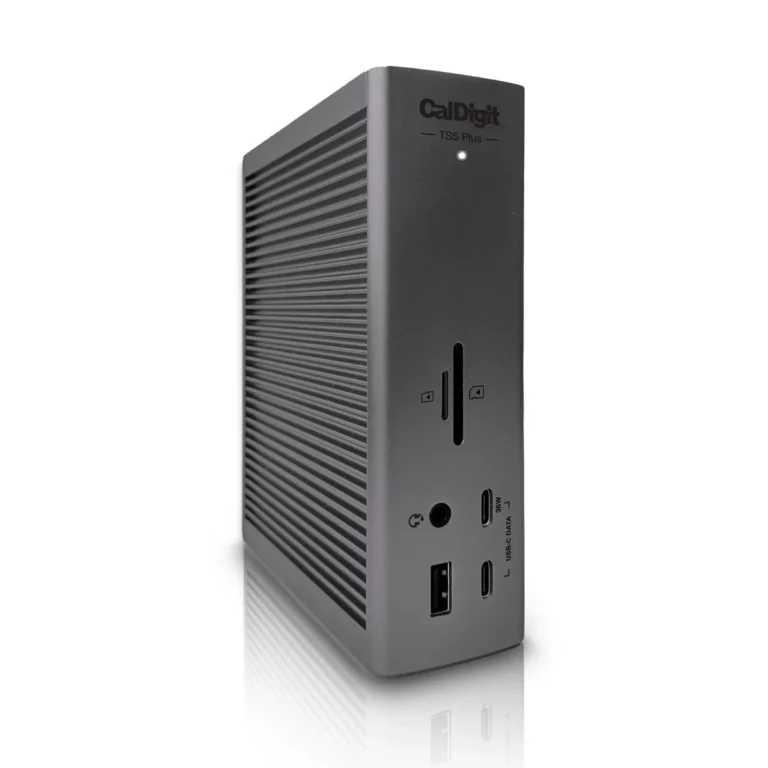
Compare the current delivered price for the same specification at Amazon and Walmart. We do not label either store cheaper without a verified matching offer. If your evidence points to a dock limitation, review our CalDigit TS4 buying guide or OWC Thunderbolt 5 dock guide against your laptop and storage requirements.
Use this test worksheet
| Test | Keep constant | Record |
|---|---|---|
| SSD directly connected | File, direction, source drive, SSD cable | Time, stable speed, slowdown pattern |
| SSD through hub alone | Same workload and suitable host port | Port used and change from baseline |
| Known-good cable comparison | Same hub and SSD port | Whether the result improves |
| Normal accessories restored | Same file-copy test | Which active workload changes the result |
For a simple estimate, divide the file size in megabytes by elapsed seconds. Keep units consistent: a displayed GiB is not the same unit as a decimal GB. Treat the figure as a workload comparison rather than a precise interface measurement. Save the worksheet with the model numbers if you need manufacturer support.
Frequently asked questions
Does a USB-C hub always slow down an external SSD?
No. The result depends on the supported data path, the SSD, and competing activity. Compare a direct connection with the same cable and workload to see whether the hub makes a meaningful difference.
Why does my fast SSD run slowly through one USB-C cable?
Charging wattage does not establish data speed. The cable may support a lower data mode than the drive. Compare the supplied data cable and check the cable’s explicit data specification.
Will a powered hub make SSD transfers faster?
Power can matter when the connection is unstable or the manufacturer requires it. Extra power does not upgrade a slower data interface. For a stable but slow drive, test the data path and workload first.
Why does a 20 Gbps SSD not reach its advertised speed?
The host, cable, intervening hub, and drive must support the required mode. Actual file copies also include overhead and source-drive limits. A matching connector shape does not establish matching protocol support.
Should I replace the SSD or the hub first?
Neither until you compare the direct and hub routes. Replace the component identified by repeatable tests or a documented capability mismatch. If the drive disconnects or reports errors, resolve stability and preserve data first.
Make one change, then repeat the same comparison
Keep the direct connection as your reference, check every data-speed label, and repeat the file copy with the hub otherwise idle. Then investigate workload and sustained-write behavior. That sequence helps you choose between an existing port, a suitable cable, a different desk arrangement, and a dock upgrade without relying on the largest number on a product box.