Wemo Smart Plug Setup Guide for Easy Smart Home Control
If you want a fast, reliable way to control a lamp, fan, or other simple appliance from your phone or voice assistant, a Wemo smart plug can be a practical upgrade. The setup process is usually straightforward, but the exact steps depend on the plug model, the Wemo app version, and your Wi-Fi network.
- Setup first: Verify the exact model, app support, and Wi-Fi band before pairing.
- Best use: Lamps, fans, and seasonal decor are the most practical plug-in devices.
- Watch the load: Never exceed the rated wattage or use damaged cords, outlets, or appliances.
- Troubleshoot smartly: Most pairing issues come from 2.4 GHz Wi-Fi, permissions, or reset steps.
Wemo Smart Plug Setup: What It Does and How to Get It Working Fast
A Wemo smart plug turns a standard outlet into a controllable power point for compatible devices. In everyday use, that means you can switch something on or off from the app, set schedules, and sometimes connect it to a larger smart home routine.
The quickest path is to confirm compatibility first, install the official app, and connect the plug to a stable 2.4 GHz Wi-Fi network if your model requires it. If you are building a broader smart home setup, it can also help to compare how a plug fits with your lighting and automation plans, especially if you already use smart light switches or want to expand into smart lighting for home automation.
What You Need Before Setup: Compatibility, App Requirements, and Wi-Fi Basics
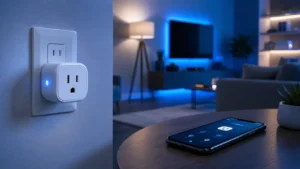
Before you start, check the exact Wemo model number and the manufacturer’s current support page. Smart plug features can vary by generation, firmware, and region, so it is better to verify requirements up front than to troubleshoot a pairing problem later.
- Check the exact model number and confirm app support
- Verify outlet fit, device load limits, and intended appliance type
- Confirm Wi-Fi band requirements, phone OS support, and account setup needs
- Review warranty terms, privacy settings, and update support before relying on it
Supported Devices, Power Limits, and Outlet Fit
A smart plug is best for simple on/off control, not for every appliance. Lamps, fans, coffee makers, holiday decor, and some small household devices are common use cases, but higher-draw appliances may exceed the plug’s rated load or create heat concerns.
Also check the physical shape of the plug. Some smart plugs are bulky enough to block the second outlet in a standard duplex receptacle, especially when used with oversized power bricks or grounded cords. If you need smart control for a lamp setup, you may also want to compare it with dedicated smart bulbs using resources like smart lights that work with Alexa or smart lights for Google Home.
App, Account, and Network Requirements for 2026
Most Wemo smart plug setups depend on the official Wemo app and a cloud or account-based login flow, though the exact process can vary by model. Confirm that your phone’s operating system is still supported and that the app version you install is the current one offered by the manufacturer.
Wi-Fi is the other big requirement. Many smart plugs work best on a 2.4 GHz network, and pairing can fail if your router combines bands in a way the plug does not like. If your router has separate SSIDs for 2.4 GHz and 5 GHz, use the one the manual specifies. A stable password, updated router firmware, and a strong signal near the outlet all improve the odds of a smooth setup.
Step-by-Step Wemo Smart Plug Setup in the Wemo App
The basic setup flow is simple: plug it in, put it in pairing mode, add it in the app, connect it to Wi-Fi, and test control. If the app cannot find the device right away, the problem is usually network-related rather than the plug itself.
Unboxing, Plug-In, and Pairing Mode
Start by verifying what is included in the box and whether any quick-start card or reset instructions are present. Then place the smart plug close to your router for the first setup, even if you plan to move it later.
- Wemo smart plug unit
- Quick-start guide or setup card
- Any model-specific safety or warranty paperwork
Adding the Plug, Naming It, and Connecting to Wi-Fi
Open the Wemo app, sign in or create the required account, and choose the option to add a new device. The app should guide you through nearby device discovery, network selection, and final registration steps.
When naming the plug, use a location-based label that will make sense later, such as “Bedroom Lamp,” “Coffee Station,” or “Porch Lights.” Clear naming matters because it makes voice control and automation routines easier to manage, especially if you have multiple plugs in the same home.
- Keep the phone close to the plug during pairing
- Use a simple device name tied to the room or appliance
- If pairing fails, restart the app and router before repeating the setup
- Move the plug to its final location only after it appears online
Testing Local Control, Remote Access, and Voice Assistant Links
After setup, test the plug in three ways: local app control, remote control away from home if your model supports it, and voice assistant control if you plan to use it. A successful test should show the plug responding quickly and consistently without repeated reconnects.
If you use Alexa, Google Home, or Apple Home features, link them only through the official integration path described by Wemo and the platform provider. If voice control is important to your setup, it can help to review broader compatibility guides such as smart lighting compatibility with Alexa before building a larger routine.
How the Wemo Smart Plug Works in Daily Use
Once connected, the plug becomes a simple control layer for whatever is attached to it. The main value comes from convenience: you can turn things on before you arrive home, shut them off remotely, or automate them around your routine.
Scheduling, Timers, and Automation Routines
Schedules are one of the most useful features for a smart plug. You can set a lamp to turn on at dusk, power off a fan after bedtime, or automate seasonal decor without remembering to flip switches manually.
Timers are helpful for short tasks, such as turning off a coffee maker after a set period if your appliance and manufacturer guidance allow that kind of use. For broader room automation, a smart plug can also complement a smart lighting system, especially if you want to compare options for overall home control and not just one outlet.
Energy Monitoring and What Information to Verify
Some Wemo models and app versions may offer power or energy-related information, while others focus mainly on switching and scheduling. Because features vary, verify whether your exact plug supports energy monitoring before expecting usage data in the app.
If the feature is available, treat it as a convenience tool rather than a precision meter unless the manufacturer explicitly states otherwise. It can still help you identify when a device is active, compare rough usage patterns, or spot something that is left on too long.
Who the Wemo Smart Plug Fits Best
This type of smart plug is best for people who want simple remote control without replacing the appliance itself. It is especially useful when the device already has a mechanical “always on” behavior after power is restored or when you want to automate a basic household item.
Best Use Cases for Lamps, Fans, Coffee Makers, and Seasonal Decor
Lamps are one of the most common and safest use cases because they usually have predictable power needs and clear on/off behavior. Fans and seasonal decor can also work well, provided the appliance stays within the plug’s load limits and is appropriate for remote switching.
Coffee makers are a more cautious category. Some models are fine with smart outlet control, while others should not be used that way because of auto-start behavior, heating elements, or manufacturer restrictions. Always check the appliance manual first.
When a Smart Plug Is Not the Right Choice
A smart plug is not ideal for devices that need variable power, precise temperature control, or uninterrupted operation. It is also a poor fit for medical equipment, critical safety devices, or appliances whose manuals prohibit outlet switching.
If your goal is lighting control for a whole room, a smart switch or smart bulbs may be a better long-term choice. If you are still deciding between plug-based control and lighting upgrades, browsing smart lights can help you compare the tradeoffs.
Setup Mistakes, Connection Problems, and Safe Use Tips
Most setup issues are fixable without special tools. The key is to separate app problems, Wi-Fi problems, and outlet or appliance problems instead of retrying the same step over and over.
Common Pairing Errors and Wi-Fi Troubleshooting
If the app cannot find the plug, move the phone closer, confirm the plug is in pairing mode, and make sure the phone is on the same network you want the plug to join. Restarting the router and temporarily disabling features that hide the 2.4 GHz network can also help, depending on your router.
Another common issue is account or app permissions. If the app cannot discover devices, check Bluetooth, local network, and location permissions where required by the operating system. If setup still fails, remove the device from the app, reset it using the official method, and try again from scratch.
Electrical Safety, Heat Checks, and Load Limits to Respect
Smart plugs should never be treated as a workaround for unsafe appliances. Respect the rated load, avoid daisy-chaining adapters, and keep the plug in a dry, ventilated area away from sinks, tubs, or outdoor exposure unless the model is specifically rated for that environment.
Check the plug after the first hour of use and again after a few days. Warm is not always abnormal, but excessive heat, buzzing, flickering, or intermittent power are signs to stop using it and review the manual.
Maintenance, Storage, and Long-Term Reliability
Smart plugs usually require little maintenance, but a little attention goes a long way. Keeping the firmware current, the outlet clean, and the app updated can help reduce connection issues over time.
Cleaning, Resetting, and Keeping the Plug Updated
Unplug the device before cleaning it, and use a dry cloth rather than liquids. Dust buildup can affect airflow and make it harder to inspect the plug for wear.
If the plug becomes unreliable, follow the official reset steps and re-add it in the app rather than guessing at button sequences. Firmware updates, when offered by the manufacturer, should be installed through the official app or support process.
Warranty Details, Replacement Guidance, and Value Considerations
Warranty terms vary by model and region, so check the current documentation before assuming coverage. If a plug fails early, the best next step is usually to confirm the return window, warranty process, and support contact channels listed by the manufacturer or retailer.
In value terms, the best smart plug is the one that stays connected, supports your appliances safely, and fits your home routine. If you need more whole-room control, a different smart-home product may be a better investment than buying multiple plugs.
Final Recommendation: Is the Wemo Smart Plug Worth It in 2026?
A Wemo smart plug is worth considering if you want straightforward app-based control, scheduling, and voice assistant integration for a compatible device. It makes the most sense for simple appliances and lighting, especially when you want automation without replacing the whole fixture.
The main limits are the usual smart-plug ones: compatibility, Wi-Fi reliability, and load safety. If you verify the model’s current app support, confirm the power rating, and set it up on the right network, it can be a practical addition to a smart home; if you need room-wide lighting control or more advanced automation, a smart switch or smart bulbs may fit better.
Choose the Wemo smart plug if you want a simple, flexible way to automate a compatible lamp, fan, or small appliance. Skip it if your device needs special power handling, if your Wi-Fi setup is unstable, or if a smart switch or smart bulb would solve the problem more cleanly.
Frequently Asked Questions
Check the exact model number, the current Wemo app requirements, and whether your Wi-Fi network supports the plug’s pairing process. Also confirm the appliance you want to control stays within the plug’s rated load and is safe to switch on and off remotely.
The most common causes are pairing mode issues, weak 2.4 GHz Wi-Fi, router settings, or missing app permissions. Try moving the phone closer, restarting the router, and following the official reset steps before trying again.
Fans and many lamps are common use cases, but you should confirm the appliance manual first. Coffee makers can be more complicated because some models have heating or auto-start behavior that may not be suitable for smart outlet control.
Most setups use the official Wemo app and may require an account to complete onboarding and remote access. App screens and features can change by firmware or version, so always check the latest instructions for your exact model.
Verify the load rating, keep it dry, and avoid damaged outlets, cords, or appliances. If the plug becomes unusually hot, buzzes, or behaves inconsistently, stop using it and review the manufacturer’s guidance.
A smart plug is best for simple plug-in devices you want to automate without changing the fixture. A smart switch or smart bulb may be better if you want room-wide lighting control or a cleaner permanent setup.